
Qwimo Relay — Installation and user guide
Screens taken from version 0.4.6. The screenshots, menu paths and messages quoted here were observed on that published package, on Dolibarr 22.0.5, on 6 August 2026 — not on the repository: what you download is what is documented. The module may have received fixes since; the screens have not changed. Where a label is not yet frozen, this guide describes the page without quoting its text: an accurate description beats an outdated quotation.
1. Which chapter applies to me
Read this page first: it will keep you from following a procedure that does not apply to your situation.
You invoice from a Belgian company. Your outgoing invoices travel over the Peppol network. Your routing identifier is built from your enterprise number (BCE). Follow chapters 2 to 6, then chapter 7 (Belgium). Skip chapter 8.
You invoice from a French company. Your identifier is built from your SIREN, followed by a routing code designating the recipient service. Follow chapters 2 to 6, then chapter 8 (France). Skip chapter 7.
You invoice from both countries. Treat each company in your Dolibarr separately: the applicable chapter is determined by the country of the issuing company, not that of the recipient.
No paragraph in this guide mixes the two countries. If you find yourself reading a procedure about the other country, you are in the wrong chapter.
2. What the module does, and what it does not do
Qwimo Relay adds to Dolibarr the transmission of your invoices over the Peppol network. The module itself is free and GPL-licensed; it relies on a relay service, operated by GT Consult SRL, which handles the delivery to the network.
The module does: build the document in the expected format from your Dolibarr invoice, address it to the recipient, follow the state of the transmission, and account for what failed and why.
The module does not: check the accounting content of your invoice, correct your third-party data, or guarantee that your recipient will read the document. The network carries; it does not read on your behalf.
The module also does the following, free of charge and without a subscription:
- receive the supplier invoices that reach you over the network, and create them as drafts in Dolibarr with their attachment (chapter 10);
- e-mail a copy to your accountant for every invoice you validate or receive (chapter 11);
- tell you, for each of your customers, whether they are reachable on the network.
One point of vocabulary that matters
When an invoice is marked Sent to the network, it means the relay handed the document to the network and the network acknowledged taking charge of it. This is not proof of reading, nor of acceptance by your customer. Your obligation as an issuer is discharged at that moment.
A second state exists, Received by the recipient, and it says what it says: the recipient's system acknowledged receipt. You will almost never see it on an invoice you issue — the operator only reports that event to the party that receives. Do not wait for it: its absence does not mean your invoice was lost.
A rule this module holds itself to, and that you may hold it to: a screen never claims more than it knows. If the operator says "deposited", the module does not write "delivered". When it does not understand what the network answers, it shows Unexpected state — needs checking rather than a reassuring one: a question beats a false certainty.
3. Before installing
Three things to gather:
- Administrator access to your Dolibarr, with the ability to place a file in the external modules folder (
custom/). - A backup of your database. The module creates its own tables; it does not modify Dolibarr's native tables, but no installation happens without a backup first.
- Your company record filled in inside Dolibarr — name, address, country, enterprise number. The module uses it to sign you up and to identify you on the network; it will not ask you for those details again.
You do not need an account beforehand. You will create it from the module's configuration page, in three minutes, once the module is installed (chapter 6). There is nothing to open on our website first.
Compatible versions. The module is installed and enabled automatically, on every change, on Dolibarr 18, 19, 20, 21, 22 and 23 — official containers with a MariaDB database — under PHP 8.0, 8.1, 8.2 and 8.3, including one pass where PHP displays all of its warnings. These are the only versions announced, because they are the only ones proven. The screens in this guide were observed on Dolibarr 22.x; the interface may differ slightly on yours.
4. Check the package before installing it
The distributed package comes with its SHA-256 fingerprint. Check it before placing anything on your server: it is the only way to know that the file you hold is the one that was published.
On Linux or macOS:
sha256sum qwimorelay-0.4.14.zipOn Windows, in PowerShell:
Get-FileHash .\qwimorelay-0.4.14.zip -Algorithm SHA256The fingerprint displayed must be identical, character for character, to the one published on the module's page:
qwimorelay-0.4.14.zip
SHA-256 : 1e3922fa6dee432f7d451b5c6409948c89d7a0322f0ced7f38b345b54dee00eb
The fingerprint is also served next to the package, in the file qwimorelay-0.4.14.zip.sha256, and repeated in latest.json.
If the two fingerprints differ, do not install the file and tell us.
5. Installation
- Place the ZIP file in your Dolibarr's external modules folder, or use Dolibarr's built-in module deployment if your configuration allows it.
- Enable the module from the module list in the configuration.
- Open the module's configuration page.
The path, observed on Dolibarr 22.0.5: Home → Setup → Modules/Applications, then the Deploy/install external module tab.
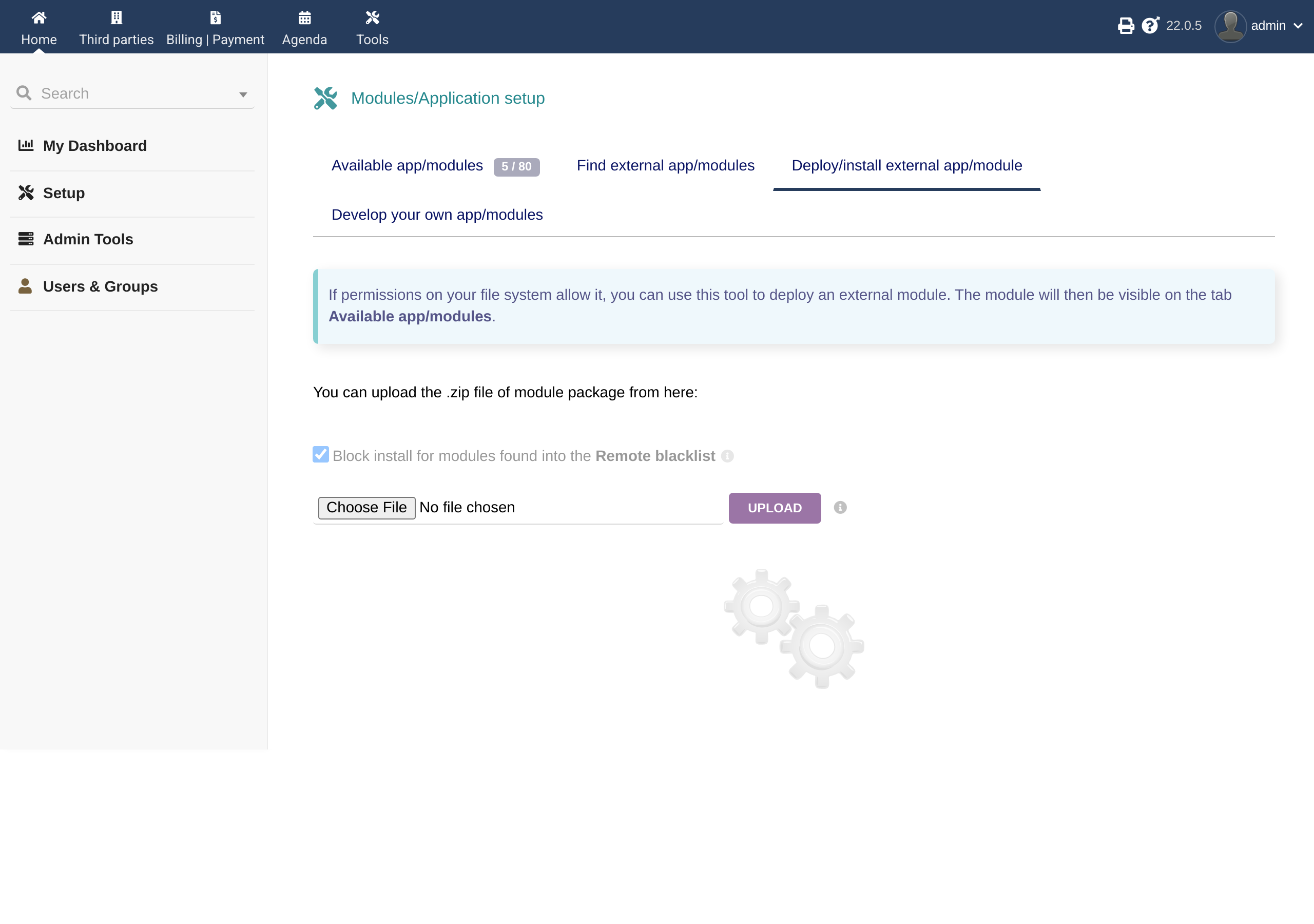
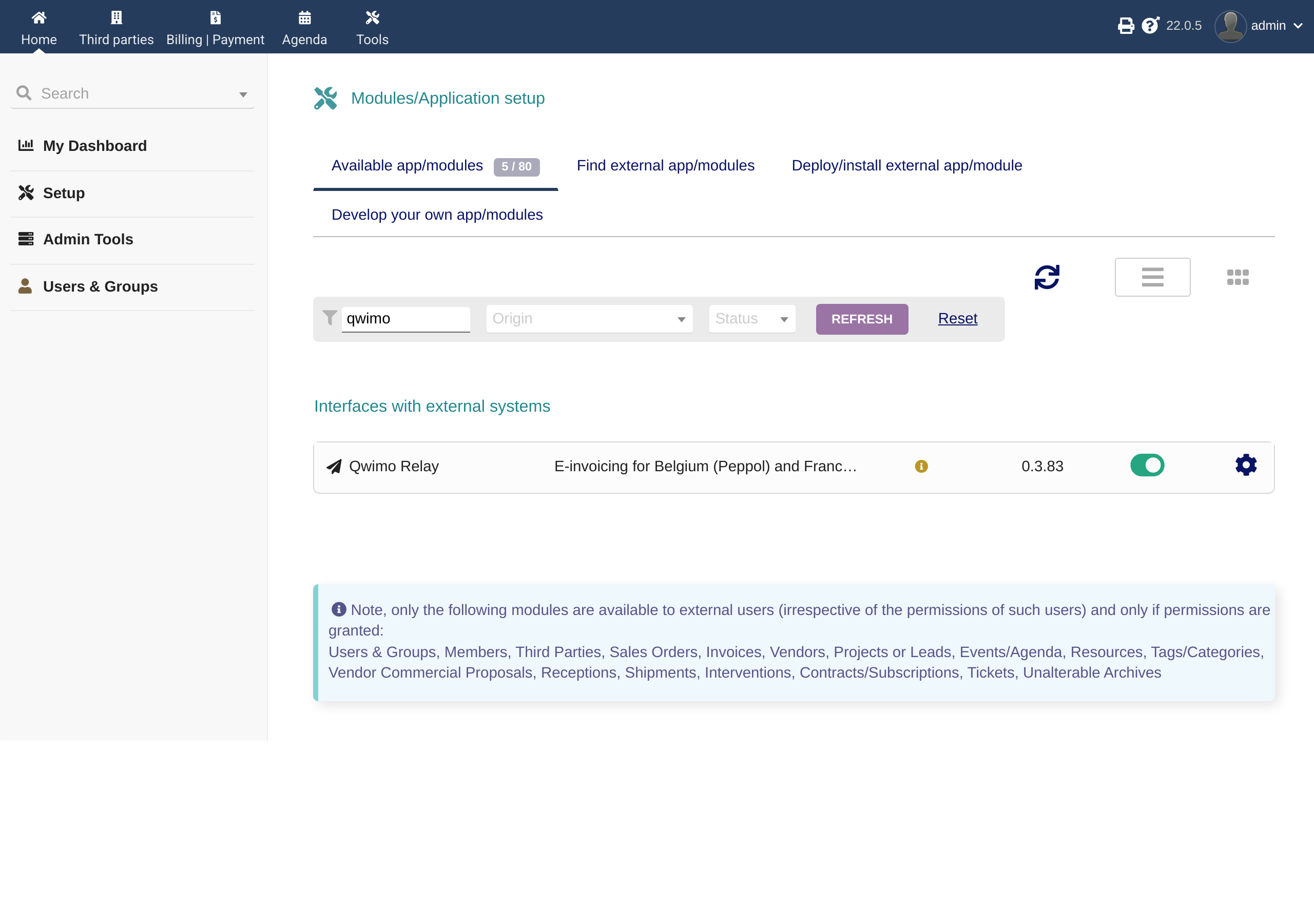
Once the package is uploaded, the module appears in the list and waits to be enabled:
The most frequent hitch on the first attempt does not come from the module but from your hosting. If Dolibarr displays:
Installation of external module is impossible from the web interface for the following reason: Failed to write into directory
…/custom
then the external modules folder is not writable by the web server — the common case on shared hosting. Two ways out: ask your host to make that folder writable, or unzip the package yourself into custom/ over FTP or SSH. Dolibarr itself offers this second procedure below the message.
6. Configuration
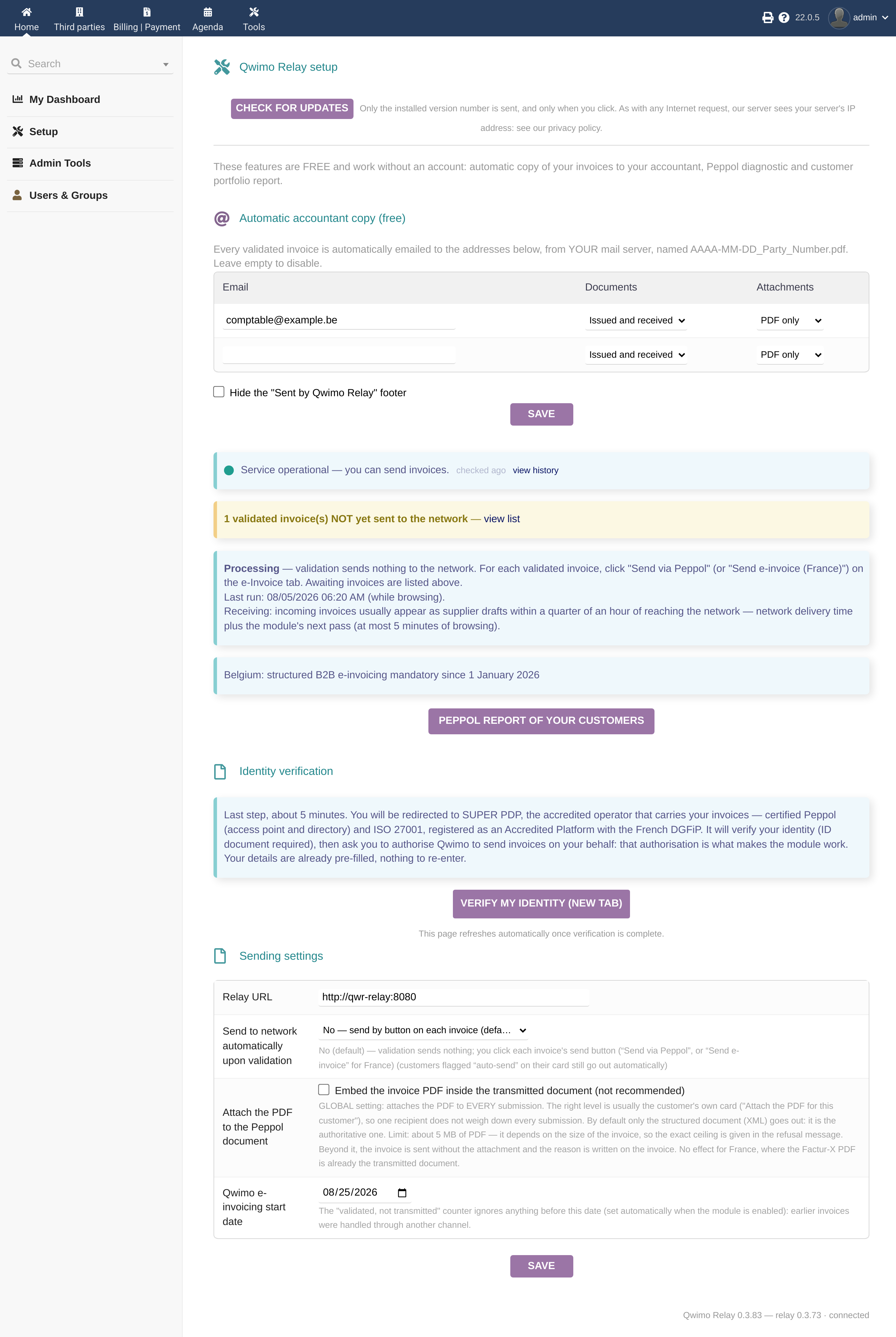
Everything happens on this page. You will never visit our website to configure anything.
6.1 Create your account — three minutes
While no account exists, the page shows a sign-up form already filled in with your company details: e-mail address, country, enterprise number, legal name. Those values come from your Dolibarr company record — check them at a glance rather than retyping them.
Tick the acceptance of the terms, then create the account. Three things happen at once:
- your access key is created and stored in Dolibarr — you never copy it;
- that key is e-mailed to you. Keep the message: if you ever reinstall Dolibarr, this is the key to paste back, without creating a new account — which is how you keep your remaining trial days;
- your 30-day trial starts.
Already have an account? Below the form, a I already have an account panel accepts your key. It only stores the key locally: no call, no account created, no commitment.
Lost your key? Sign up again with the same e-mail address. No second account is created, your trial days are not reset, and the existing key is e-mailed to you again.
6.2 Identity verification
Once the account exists, one step remains: proving you are entitled to issue invoices on behalf of your company. That is a network requirement, not a formality we add.
The button opens a tab at SUPER PDP, the accredited operator that carries your invoices — certified Peppol (access point and directory) and ISO 27001, registered as an Accredited Platform with the French DGFiP.
What you will do there, so that nothing surprises you:
- confirm your e-mail address;
- confirm your company — already pre-filled;
- accept a formal agreement with the operator;
- verify your identity, ID document required, about 5 minutes;
- authorise Qwimo to send invoices on your behalf: that authorisation is what makes the module work.
When you come back, the configuration page updates on its own. If it did not, a « Refresh the page » button appears — no need to look further.
How long do I have left? The number of remaining trial days is shown on this page, before and after the verification.
6.3 Sending settings
Four settings, all changeable at any time:
Relay URL. Already filled in: https://api.qwimo.com. This is the address of the Qwimo service your Dolibarr talks to. There is nothing for you to change here, and it is better left alone: a wrong address cuts off both sending and receiving at once. The field exists for special cases only — a test instance, or troubleshooting at our request.
If you read something else here, such as an internal machine name, you are on a test instance rather than on your production Dolibarr. That is the case in the screenshot above: it was taken on our test bench, which talks to a local relay. On your own installation you will read https://api.qwimo.com.
Send automatically upon validation. Default: no. Validating an invoice transmits nothing — you click the send button on each invoice. That is the safest way to start.
Attach the PDF to the sent document. Default: no, and deliberately so — see chapter 9.1.
Start date. Set automatically when the module is enabled. The « validated but not transmitted » counter ignores anything before that date: your older invoices, handled through another channel, do not clutter your dashboard.
6.4 Your issuer identity
It is not entered in the module. It is built from your company record in Dolibarr — name, address, country, enterprise number. If one of these is missing or wrong, the transmission is refused before anything is sent. Check that record before your first send.
7. Belgium chapter
7.1 The enterprise number, and Dolibarr's trap
In Belgium, routing relies on your enterprise number (BCE) and on your recipient's. A BCE number has ten digits: eight digits, then a two-digit check key computed from the first eight.
The module verifies that key. A number whose key is wrong produces no routing address at all: the transmission is refused explicitly, rather than sent to some random recipient. This is deliberate — otherwise a single mistyped digit would be enough to hand your invoice, with its name, address and amounts, to an unrelated company.
The trap. Dolibarr, for its part, does not verify the check key: it only verifies that the number is written with its separating dots. Two consequences you will meet:
- A perfectly valid number typed without dots is shown in red by Dolibarr as an "incorrect value". It is not incorrect; it is badly punctuated. Rewrite it as
0123.456.789. - A number with its dots but with a wrong check key passes without any warning from Dolibarr. It will be refused by the module at send time, not before.
Observed on Dolibarr 22.0.5, on 1 August 2026.
7.2 Preparing a third-party record
On your customer's record, fill in the country, the full address and the enterprise number. That is all the module needs to build the routing address.
The exact field matters, because two of them look alike. On a Belgian third-party record, Dolibarr shows:
| Field, as it is labelled | What the module does with it |
|---|---|
| Prof Id 1 (Professional number) | This is the one. The module reads the BCE number here and builds the 0208:… routing address from it |
| VAT ID | Used as a fallback, under precise conditions — see just below |
What "fallback" means exactly. Observed screen by screen on Dolibarr 22.0.5, on 1 August 2026, using fictitious numbers:
| What the record holds | Address used |
|---|---|
| Prof Id 1 correct, VAT correct | Prof Id 1 |
| Prof Id 1 empty, VAT correct | the VAT — this is the fallback |
| Prof Id 1 malformed (seven digits, say), VAT correct | the VAT — the fallback applies here too |
| Prof Id 1 with ten digits but a wrong check key, VAT correct | no address at all. The fallback does not apply |
| Prof Id 1 and VAT designating two different companies | Prof Id 1, with no warning whatsoever |
Two consequences, and you need them before you invoice.
A number with a wrong check key blocks everything, even if the VAT is right. The fallback looks at length, not at the key. Ten digits with a wrong key is a number the module refuses — and it will not reach for the VAT instead. That is deliberate: between two identities that contradict each other, silently falling back to the second would mean choosing the recipient for you.
And the message will send you to the wrong place. In this precise case the module displays "enterprise number missing on the record" although the number is there. It is present and wrong, not absent. If you read "missing" in front of a field that is visibly filled in, it is the check key that is wrong: read the number back with your customer. This label will be fixed; it is described here because it is what you will see.
If the two fields contradict each other, Prof Id 1 wins, silently. No alert will tell you that the record's VAT number designates another company. If you are reusing old records, check that both fields refer to the same third party: Prof Id 1 is what decides where the invoice goes.
Write the number with its dots: 0123.456.789. Without them Dolibarr shows it in red although it is correct (see 7.1).
And re-read 7.1 before saving: Dolibarr checks the punctuation, not the check key. A number whose check key is wrong is accepted by Dolibarr without any warning at all, saves normally, and only shows up at the first send — refused. This is the point in the journey where you get it wrong without knowing: the software said yes.
If the number you have has only nine digits, it is almost always missing its leading zero. The module tells you so explicitly.
7.3 The recipient must be registered on the network
Peppol is not email: you cannot write to someone who is not on it. If your recipient is not registered yet, transmission is not possible — this is not a mistake on your side.
This situation is not final: companies register continuously. The send button stays available on the invoice concerned so that you can try again later, without having to undo anything.
7.4 The Belgian obligation — state as of 1 August 2026
Since 1 January 2026, invoices between Belgian VAT-registered companies must be structured electronic invoices, exchanged directly between software: a PDF sent by email is no longer enough. Invoices addressed to private individuals are not covered.
- Text: law of 6 February 2024 amending the VAT Code and the Income Tax Code as regards the electronic invoicing obligation, published in the Belgian Official Gazette of 20 February 2024.
- Official portals:
einvoice.belgium.beandefacture.belgium.be(FPS Finance / FPS Economy).
State as of 1 August 2026, the date on which these sources were consulted. A legal obligation changes: check it at the source before relying on it.
8. France chapter
8.1 The routing identifier
In France, the identifier is built from the company's SIREN, followed by a code designating the recipient service within that company. One company may therefore have several addresses depending on which service is to receive the invoice.
The service code is not something you invent: your customer gives it to you. A correct SIREN with the wrong service code designates a service that does not exist.
8.2 What the module checks, and what it does not check yet
On the Belgian branch, the module verifies the check key of the enterprise number. On the French branch, the SIREN check digit is not verified yet. Consequence to know about: a mistyped digit may designate another company's identifier. Re-read the SIREN of your French recipients before your first send.
9. Sending an invoice
From a validated invoice, the Electronic invoice tab carries the send button.
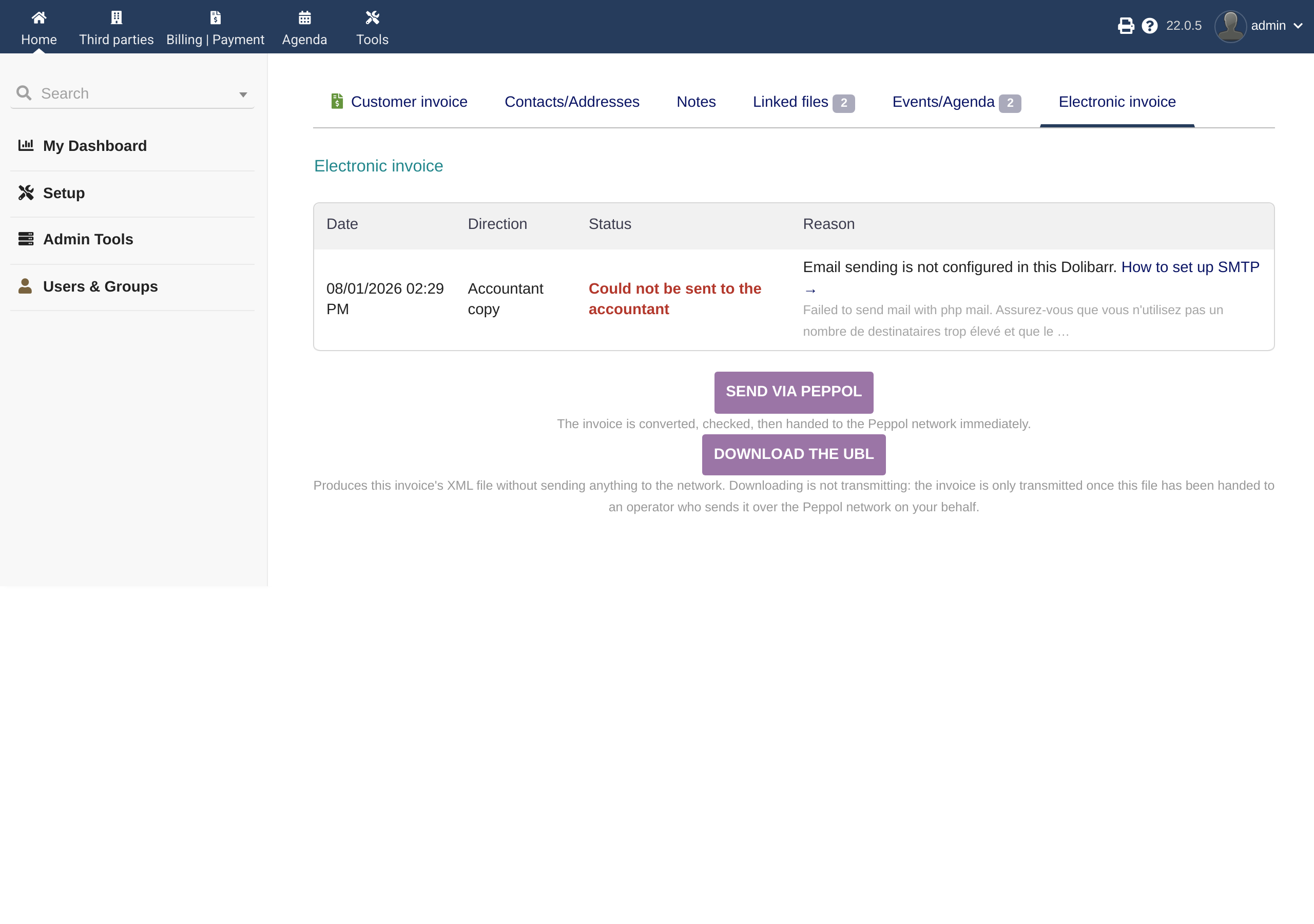
About button labels. The exact wording of the send buttons changes in the version following the one described here: depending on the invoice's state, the button offers a first send, another attempt, or a resend. This guide therefore describes what the button does, without quoting its label — an outdated quotation would be worse than a description.
After sending, the invoice carries a state. The labels below are the ones the screen displays, word for word:
Waiting. Transmission has not been attempted yet: it will go out at the next run of the scheduled task. As soon as one attempt fails this label changes — the screen then announces a new attempt and the number of that attempt. The module retries automatically, first at the pace of the scheduled task, then at growing intervals — about ten attempts spread over two days. You have nothing to do.
Sent to the network. The relay handed the document to the network and received its acknowledgement of charge. Your obligation as an issuer is discharged. Re-read the point of vocabulary in chapter 2: sent does not mean read.
Received by the recipient. The recipient's system acknowledged receipt. You will rarely see this on an invoice you issue — the operator usually reports that event only on the receiving side. Its absence means nothing bad.
Blocked — action required. Sending cannot happen for a reason that concerns your account, not your invoice: trial over, failed payment, account not opened yet. The « Reason » column says which one and what to do. Nothing to fix in the invoice: it will go out on its own once the point is settled.
Rejected. The network refused the document. The reason is shown in plain words next to it: almost always a non-compliant invoice field. The resend button stays available once corrected.
Unexpected state — needs checking. The network answered something this module cannot translate yet. The invoice is neither confirmed delivered nor rejected. The raw detail is in the « Reason » column: send it to support, that is exactly what we need. This state exists because we would rather ask you a question than show you a certainty we do not have.
Not transmitted — recipient absent from the Peppol directory. The recipient is not registered on the network. The send button stays available: try again later. On an installation whose country is France, the same state shows without the word Peppol.
Handled outside Qwimo. You declared that this invoice is handled through another channel. The button stays available if you change your mind.
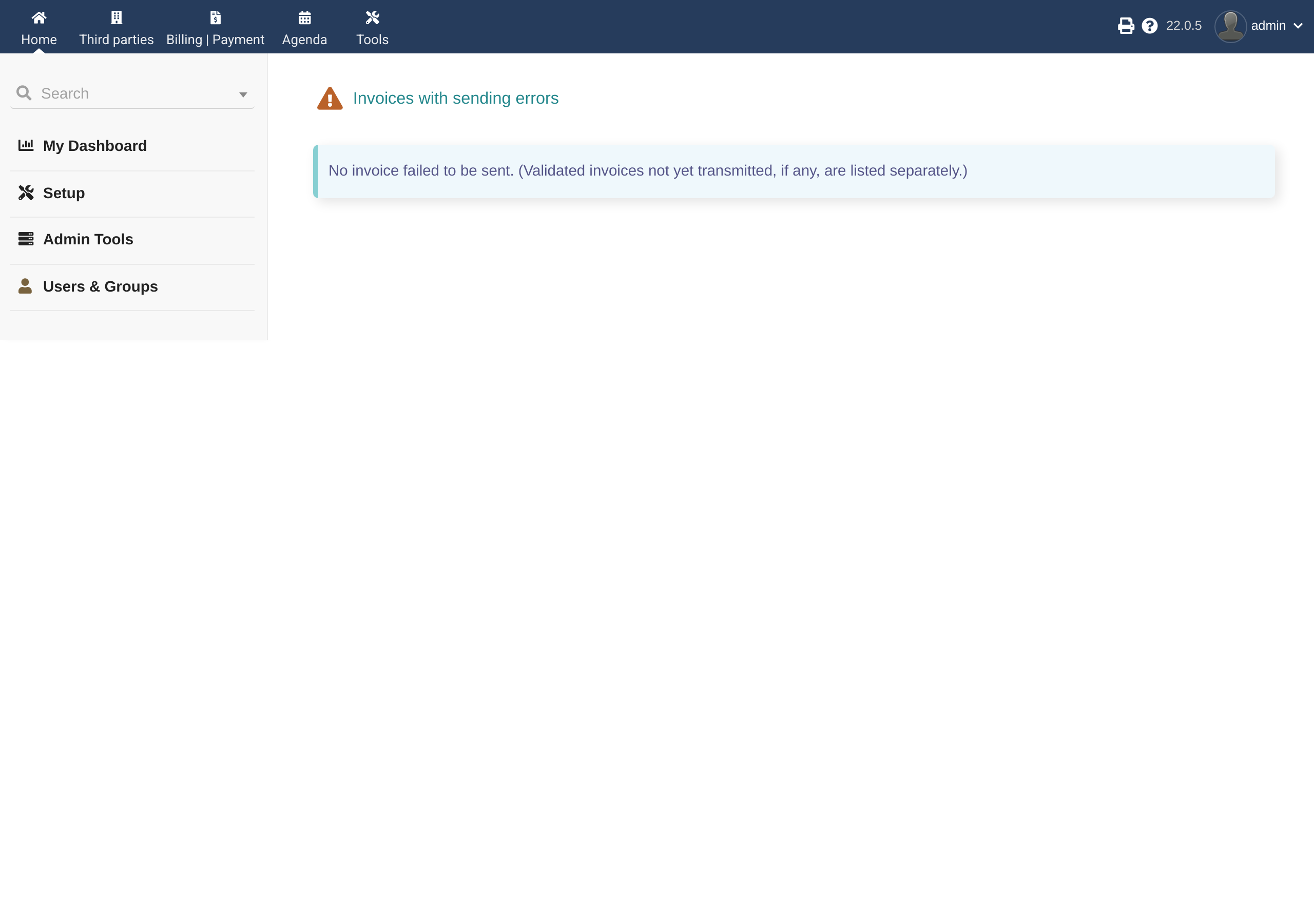
Failed — given up after several attempts. All attempts failed. The cause appears in the Reason column of the errors page. The resend button stays available once the cause is fixed.
9.1 The attachment
You may ask for the invoice PDF to travel alongside the structured document. This is not the default, and that is deliberate: the structured document is the authoritative one and the one your customer's software ingests.
The network bounds the size of what it accepts. If your PDF exceeds that limit, the invoice is still sent — without the attachment — and the reason is written on the invoice. Two consequences to know:
- this is not an error: the send succeeded, so the invoice does not appear on the errors page; the note appears on the invoice record, in the Reason column;
- the ceiling is expressed in your unit — the size of your PDF — and it depends on the size of the invoice; the message gives you the exact ceiling for that particular invoice. A lighter PDF (compression, image resolution) is usually enough.
9.2 Bulk handling
The Validated invoices not yet transmitted page lists what has been validated but has not gone out yet. You reach it from the Billing | Payment menu. It is the dashboard of your obligation: nothing should stay there for long.
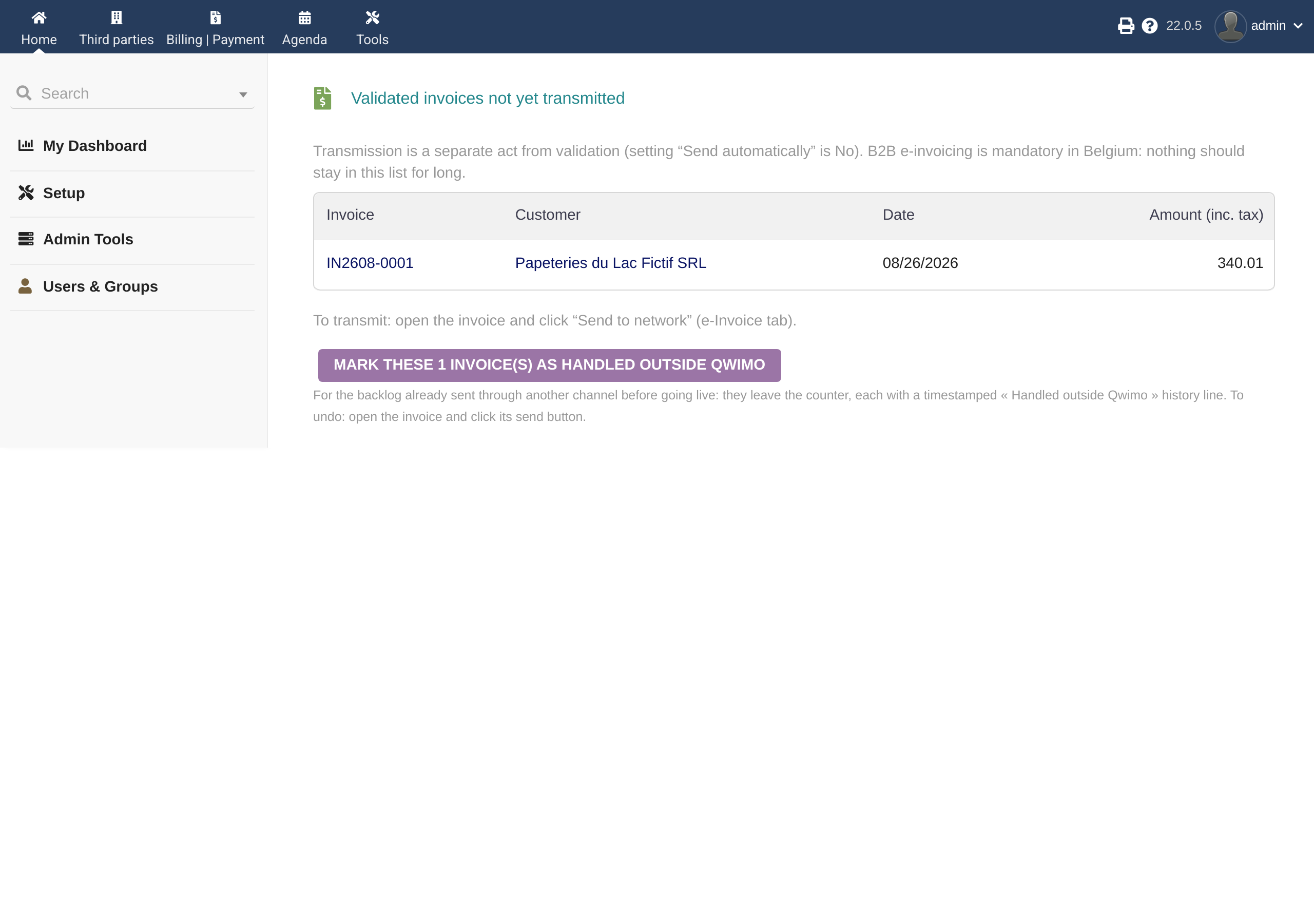
From that page, a mass action lets you declare several invoices as handled outside Qwimo. It deletes nothing and closes no door: every invoice marked this way keeps its send button.
9.3 Download the file without sending it
Below the send button, Download the UBL produces the invoice's XML file and hands it to you, without depositing anything on the network.
What it is for: archiving, having your accountant check it, or handing the file to an access point yourself if your recipient asks for it.
Downloading is not transmitting. The invoice is only transmitted once that file has been handed to an operator who sends it on the network for you.
The button stays available in every state, including after a successful send and including when the recipient is absent from the directory — which is exactly when you need it most.
10. Receiving your supplier invoices
You have nothing to do. Invoices your suppliers send you over the network arrive on their own in Dolibarr, as draft supplier invoices, with their attachment.
Timing. Expect them within the quarter of an hour following their arrival on the network: delivery time plus the module's pass. That pass is triggered by navigation — someone simply using Dolibarr is enough. If nobody logs in for several days, enable Dolibarr's Scheduled jobs module: it then takes over. It is not mandatory.
What you get. A draft supplier invoice. The supplier is matched against your existing records when recognised; otherwise it is created.
Why a draft and not a validated invoice. Because validating commits your accounts. A third-party module does not do that for you — unless you explicitly ask it to: see 10.2.
The attached documents. In the invoice's Documents tab you will find:
- your supplier's own PDF, if they included it in their submission — the invoice as they designed it, with their wording and layout. That is the one Dolibarr shows you as a preview, and the one your accountant receives;
- a readable rendering produced by the operator, used as the preview when the supplier attached no PDF of their own;
- the original XML file, which is authoritative in case of dispute.
Not every supplier includes their PDF: electronic invoicing does not require it. When it is there, you get it; when it is not, the readable rendering stands in.
10.2 Validating received invoices without intervention
By default a received invoice waits for you as a draft: you look at it, you validate it, and that validation is what triggers the copy to your accountant.
If you would rather have it all happen on its own, tick "Automatically validate supplier invoices received from the network" in the sending settings.
Before you tick it. A validated supplier invoice gets a final number and can no longer be edited. Two cases are never validated automatically, whatever you tick: an invoice received with no usable line, and an invoice at 0. Those wait for you as drafts.
10.3 Automatic wake-up: no longer depending on your presence
Receiving needs a pass of the module. Browsing triggers one, a scheduled job too — but both assume something happens on your side. The automatic wake-up reverses that: the relay knows to the second when an invoice reaches you, and it notifies your Dolibarr.
Enable it with one button on the configuration page, Automatic wake-up section. There is no address to type: it is derived from your installation, and the relay tries it immediately. If it cannot get through, it tells you why right away rather than letting you believe it is in place.
What the call carries: nothing. No invoice number, no sender name, no identifier. It says "go and check your mailbox", and that is all. It is signed with your access key: the address alone is worthless, and nobody can trigger anything beyond the pass your own browsing already triggers.
If your Dolibarr is not reachable from the Internet — internal network, HTTP authentication on the server, strict firewall — the wake-up cannot work. Keep the scheduled job of 10.2 above. The configuration page warns you if the relay stops getting through: a wake-up that no longer works is more dangerous than no wake-up at all, since you believe it is active.
10.1 To receive, your company must be published
On the network, it is the recipient who must be published in the directory, not the sender. That is what the identity verification of chapter 6.2 does: it registers your company so that people can write to you.
If you were already registered elsewhere — through your accountant, your previous software, another operator — your mail arrives there, and Qwimo never sees it. A company is published in one place at a time. The transfer happens during identity verification; when in doubt, write to us first.
11. The accountant copy
Free, no subscription, independent from the network. On every validated or received invoice, the module e-mails a copy to whoever you designate — your accountant, your payroll office, yourself.
You set this on the configuration page: one or more addresses, and for each the direction that concerns it (issued, received, or both) and what it gets (the PDF alone, or the PDF and the structured file).
The e-mail leaves from your own Dolibarr, through its usual mail settings. It does not go through our servers, and it works even without an account with us.
On the e-Invoice tab these lines are marked « Accountant copy » with the state « Sent to the accountant ». Do not mistake them for a network transmission: they are e-mails, they never touched Peppol.
12. Trial, subscription and billing
Thirty days of trial, counted from the creation of your account. During that period everything works without restriction and without a payment card. The number of days left is shown on the configuration page.
Subscribing before the end costs you nothing. The subscription extends the trial to its real end date: you are only charged then. Subscribing earlier therefore never shortens your trial.
If the trial ends without a subscription, sending stops and your invoices show « Blocked — action required ». Receiving continues: we never hold your incoming mail hostage.
If a payment fails, same principle: sending is suspended, receiving carries on, and the message tells you where to update your payment method.
Your subscription invoices are available from the configuration page.
13. When something goes wrong
| Symptom | Likely cause | What to do |
|---|---|---|
| The enterprise number shows in red in Dolibarr although it is correct | Dolibarr requires the separating dots and only checks punctuation | Rewrite it as 0123.456.789 (observed on Dolibarr 22.0.5, 1 August 2026) |
| The send is refused for a number Dolibarr accepted | The check key is wrong; Dolibarr does not verify it, the module does | Check the number with the customer or in the register |
| The module reports a nine-digit number | The leading zero was lost | Add the leading zero |
| "Not transmitted — recipient absent from the Peppol directory" | The recipient is not registered on the network | Try again later; the button stays available |
| The invoice stays waiting | Automatic attempts under way | Wait; the state becomes Failed — given up after several attempts if they all fail |
| The access key is refused | Key mistyped, or account not active | Use the check button on the configuration page |
| The send is refused before any network call | Your own company record is incomplete | Complete name, address, country and enterprise number |
| After an update, the module list still shows the previous version | PHP's opcode cache is still serving the old file | Clear the OPcache or restart PHP-FPM; on shared hosting, wait for it to expire — then check as described below |
On that last row, one clarification that saves you a wrong move. Do not look for confirmation inside Dolibarr: the version number shown at the bottom of the configuration page comes from the very same cached file. It will repeat the same stale value. It is not a second witness — it is the same lie displayed elsewhere.
Only two witnesses escape the PHP held in memory:
- the SHA-256 fingerprint of the ZIP you uploaded, compared with the one stated in §4 of this guide — it is computed on your own machine, asking the server nothing;
- the descriptor on disk,
custom/qwimorelay/core/modules/modQwimoRelay.class.php, whose$this->versionline can be read with a text editor or over FTP.
If those two carry the new version, the update is in place and only the display is lagging. If the descriptor still carries the old one, the ZIP was not unpacked in the right place — and then it is the update itself that must be done again.
14. Uninstalling
First of all: back up your database. None of the procedures below is reversible without a backup.
Three levels, from the lightest to the most final.
Level 1 — disable. The module is disabled from the module list. It no longer appears, no longer sends anything, and all of its data stays in place. Reversible in one click.
Level 2 — remove the module. You delete the custom/qwimorelay folder. Observed on 1 August 2026 on Dolibarr 22.0.5: Dolibarr stays perfectly functional — home, setup, modules, invoices, third parties and users all respond normally, without a single PHP error. What stays in the database: the module's two tables and its settings. Removing the folder therefore deletes none of your data, and reinstalling later finds your sending history again. This is deliberate.
Level 3 — complete erasure. The module's tables are dropped. This operation is final.
Erasing completely — only with full knowledge of what it does
⚠️ Back up your database before going further. The commands below are irreversible. They delete your sending history: you will no longer be able to show, for a past invoice, that it was transmitted to the network or when.
⚠️ The table prefix is not necessarily
llx_. Read yours in your Dolibarr'sconf/conf.phpfile, line$dolibarr_main_db_prefix:$dolibarr_main_db_prefix='llx_';Run nothing before replacing
YOUR_PREFIX_with that value, quotes excluded. A wrong prefix targets tables that are not ours.
-- Replace YOUR_PREFIX_ with the value read in conf/conf.php
-- (default: llx_)

-- 1. first check WHAT WILL BE DELETED, without destroying anything
SHOW TABLES LIKE 'YOUR_PREFIX_qwimorelay%';
SELECT name FROM YOUR_PREFIX_const WHERE name LIKE 'QWIMORELAY%';

-- 2. if and only if the list above contains nothing but "qwimorelay" rows,
--    run:
DROP TABLE IF EXISTS YOUR_PREFIX_qwimorelay_queue;
DROP TABLE IF EXISTS YOUR_PREFIX_qwimorelay_peppol_cache;
DELETE FROM YOUR_PREFIX_const WHERE name LIKE 'QWIMORELAY%';
Step 1 is not a courtesy: it is what shows you, before any destruction, that the prefix you typed does designate your tables.
15. Support and licence
The module is distributed under the GPL licence. The relay service is operated by GT Consult SRL and billed at the tariff in force, published on the pricing page.
Support: info@qwimo.com, by email, within two working days. Include in your request: the module version (it appears at the bottom of the configuration page), your Dolibarr and PHP versions, the reference of the invoice concerned, and the exact text of the message displayed. Those four items save a round trip.
Terms and conditions: https://qwimo.com/cgv/ — the French version is the authoritative one. We do not publish a binding translation of our terms. Privacy policy: https://qwimo.com/politique-confidentialite/.